
Although most application installers like Wordpress in Installatron create a database automatically, there may be times when you need to create one for development, testing or troubleshooting. You can create databases in phpMyAdmin or using a commands in a Terminal, or by navigating to cPanel > Databases > MySQL Databases. This article covers how to create databases and add users using the cPanel MySQL interface.
Create New Database
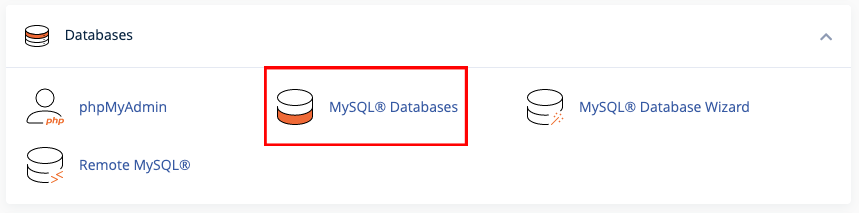
1. Navigate to cPanel > Databases > MySQL Databases, and click on the title to enter that interface.
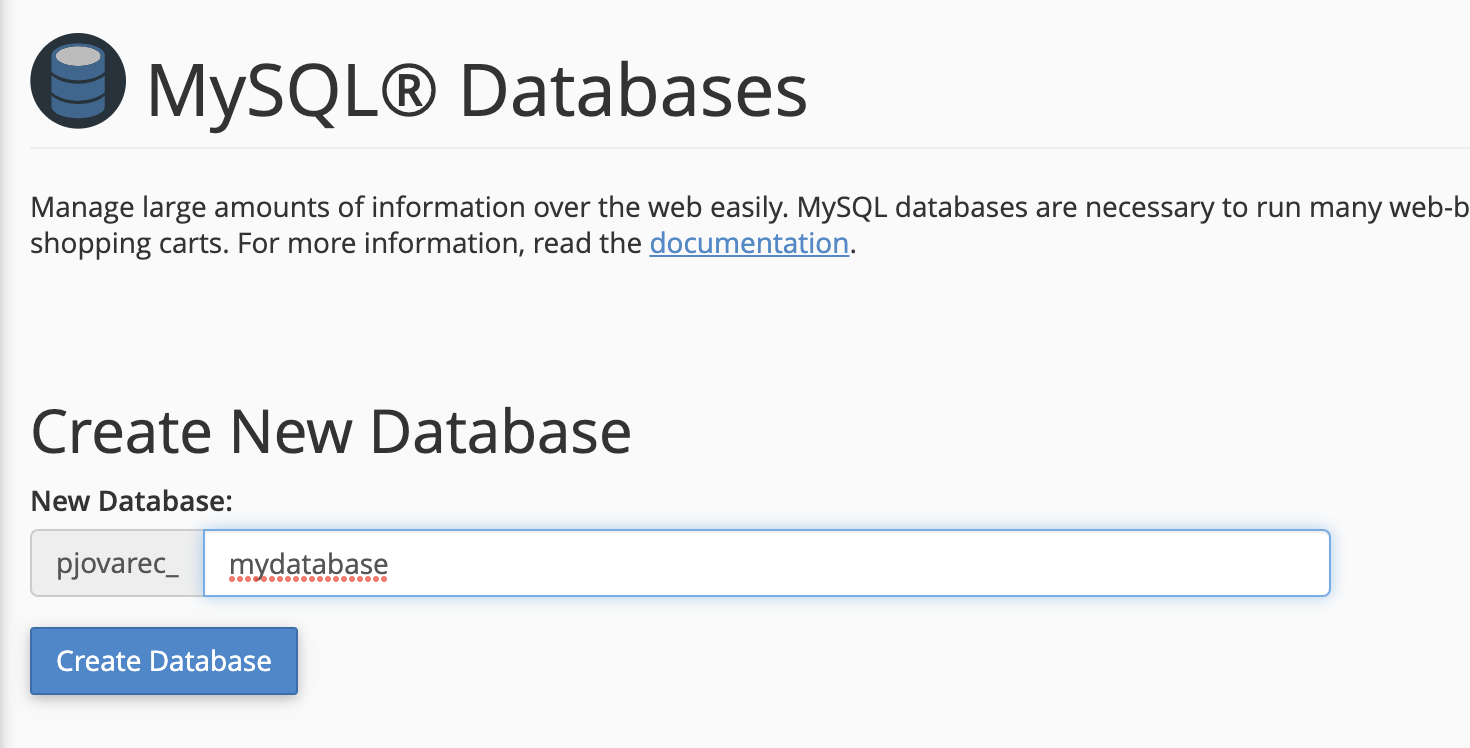
2. Under Create New Database, enter a name for the database.
The username in the account is automatically added as a prefix, for example in the format (username_)mydatabase.
3. Click Create Database to finish.
Add New User
Databases need an associated user with all privileges set to modify it. You can create a database user for each database. It is common practice to use the same name for the user as the database itself. Or you can have one database user that is added to several databases.
1. Navigate to the MySQL Users and Add New User section.
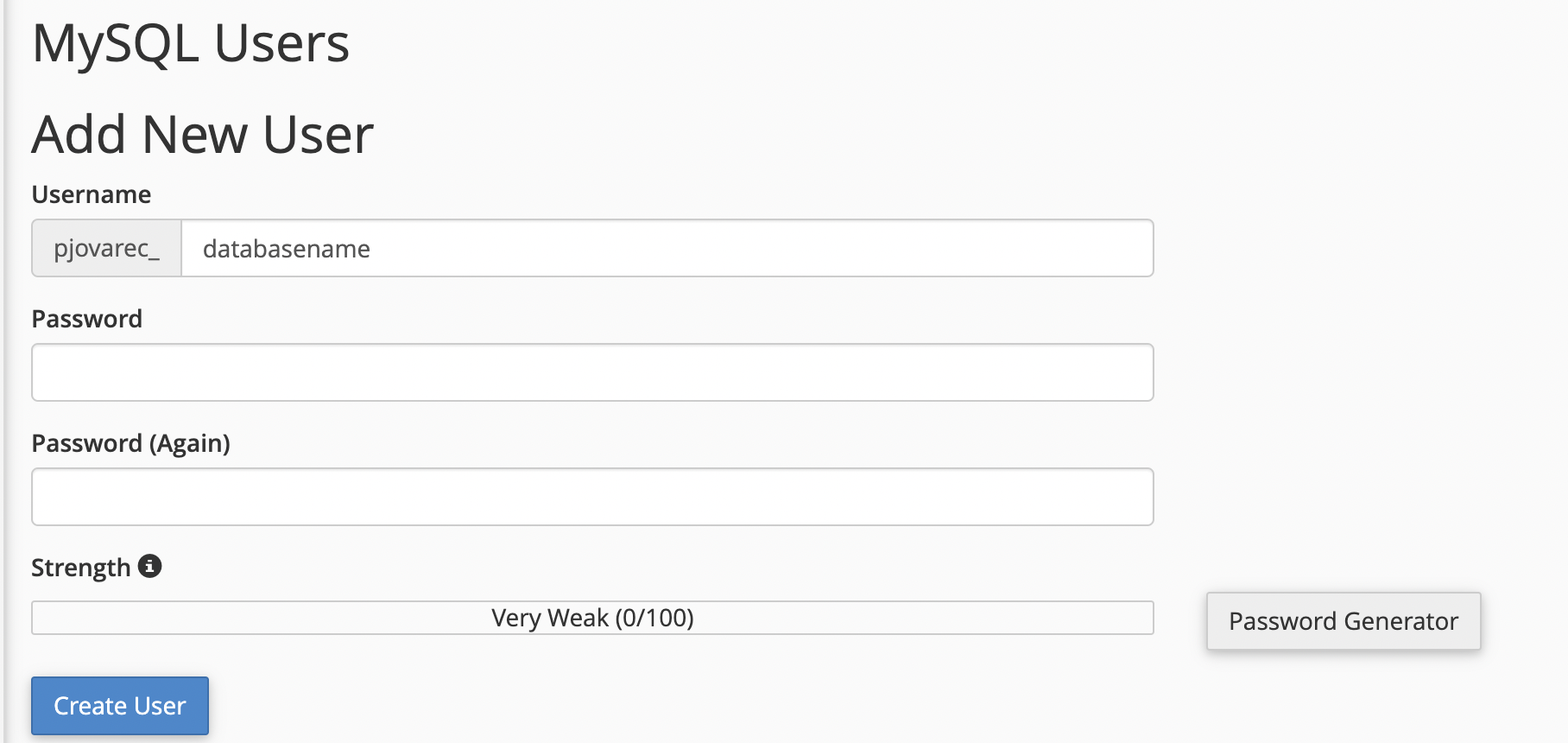
2. The username again is autofilled, so enter the name to match the database or something else you prefer. Use the Password Generator or enter one manually.
3. Click Create User.
Once a database user is created, then there is another step to Add User to Database.
Add User to Database
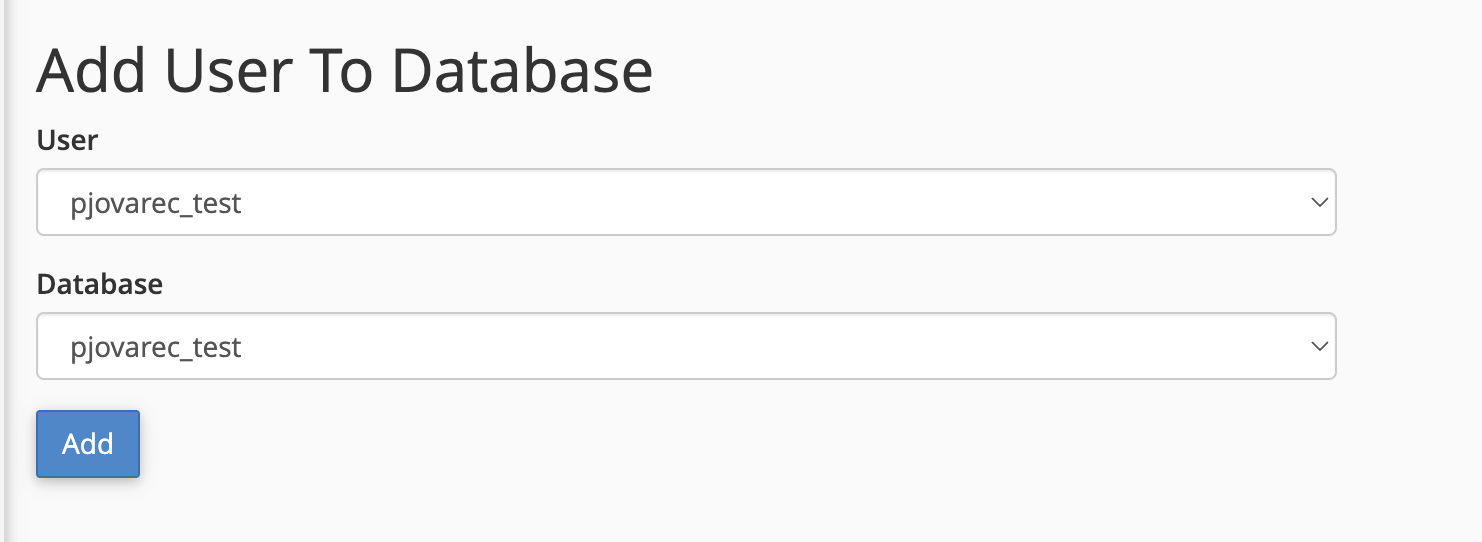
1. Under the Add User to Database section, select the desired User and Database from the dropdown menus to add them to the database.
2. Click Add.
3. Select the Privileges the user will have.
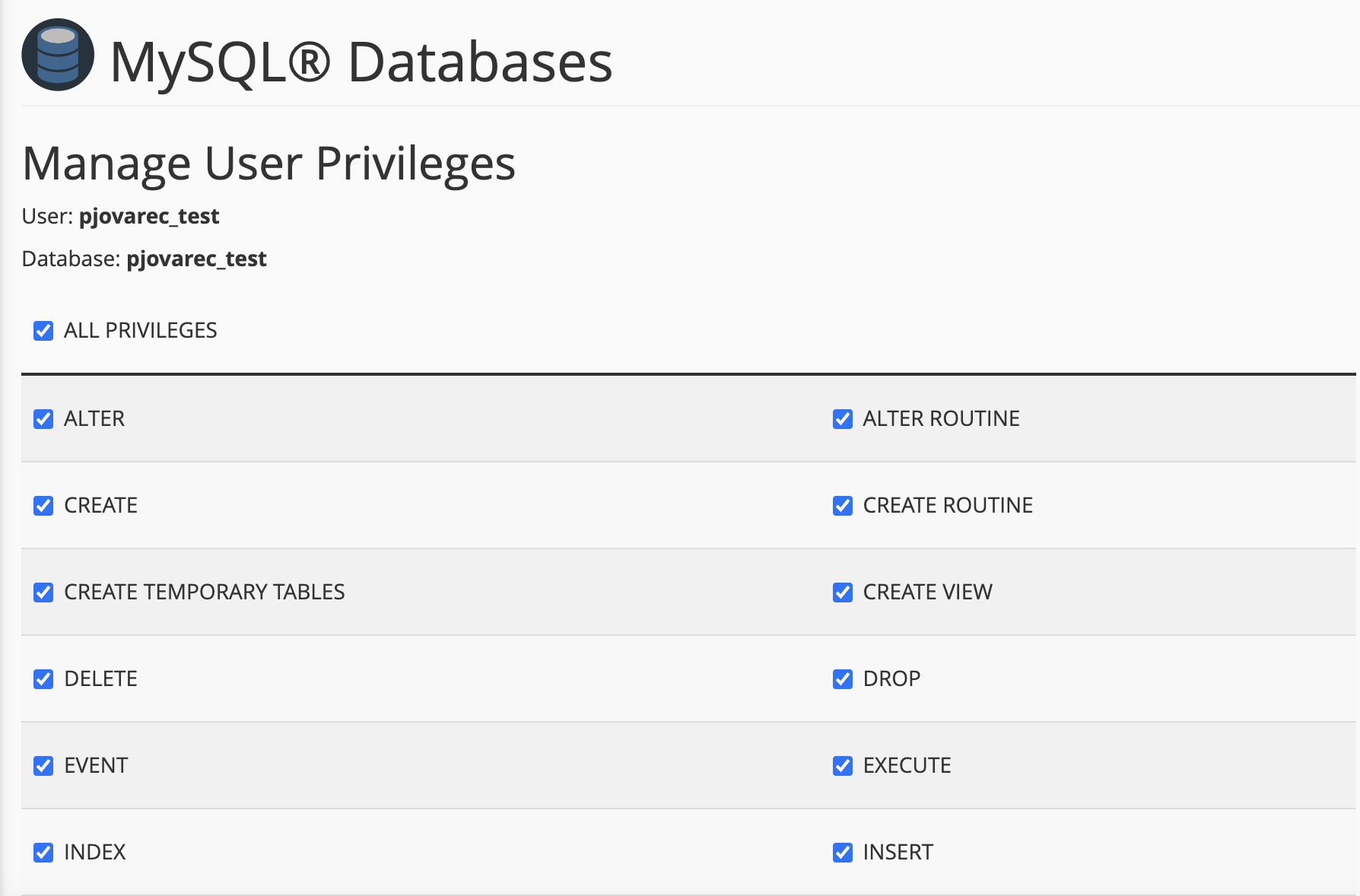
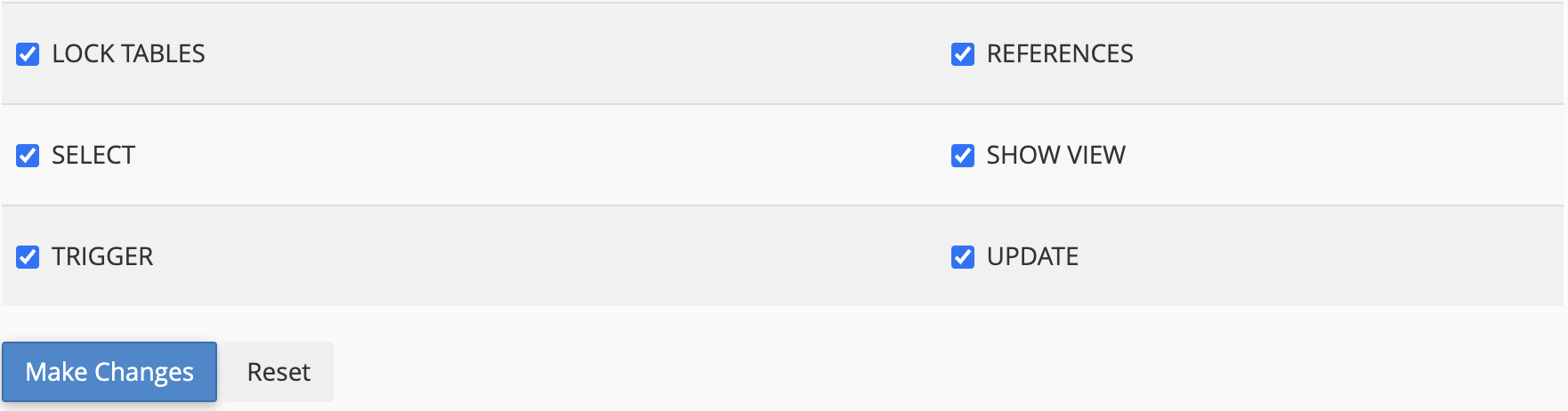
Select ALL PRIVILEGES or only select ones from the list. Then click Make Changes to finish.
More articles about Databases
- Database Management in cPanel
- How to Give Additional Users Database Access
- MySQL Database Export Backup and Import Restore Methods
- Understanding MySQL User Permissions